Please review the following instructions to submit your Grand Jury Application. Click here to start your application or click the link below the instructions.
After clicking the link, you will be taken to the OCSC Help Center login page. Enter your email address and click Next to continue.
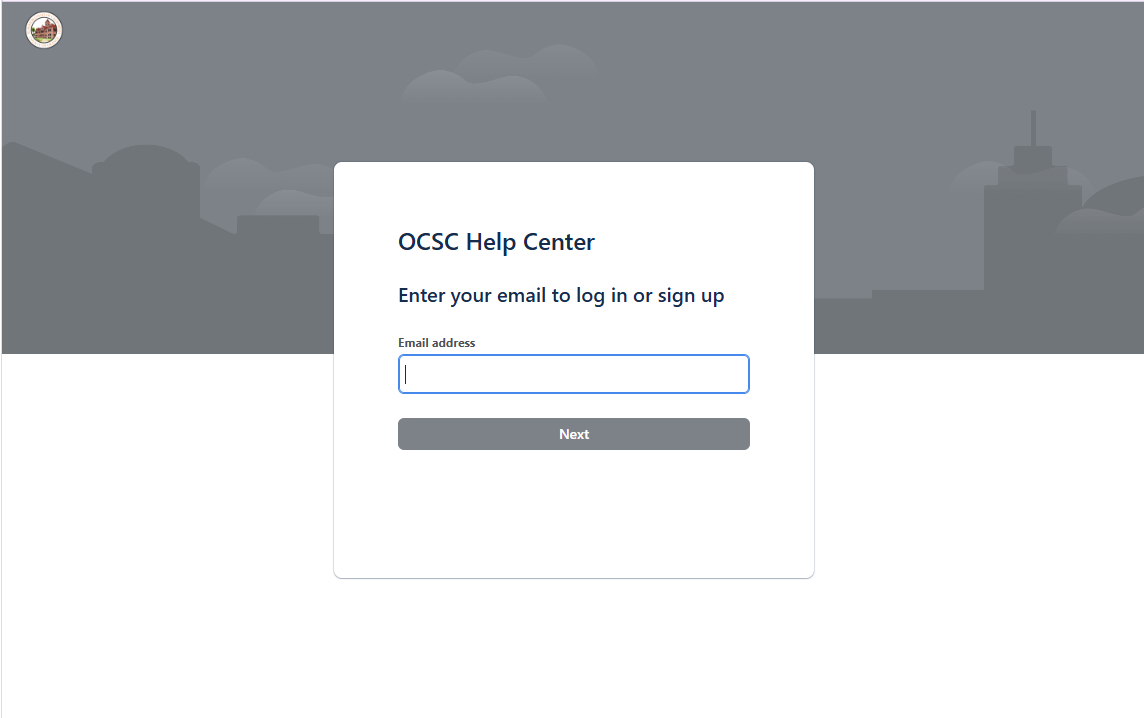
You must log in with an Atlassian account to submit an OC Grand Jury Application.
If you do not have an Atlassian account:
a. You will be prompted to sign up for an Atlassian account with your email address. Click Sign Up to continue.
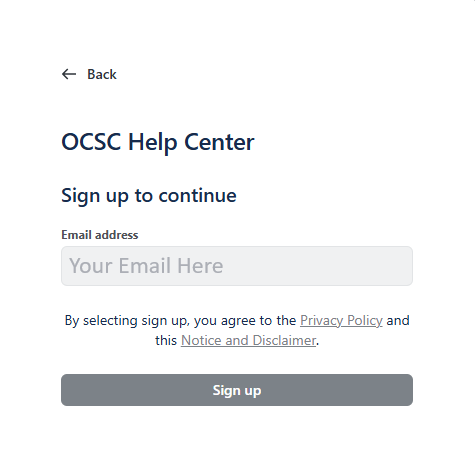
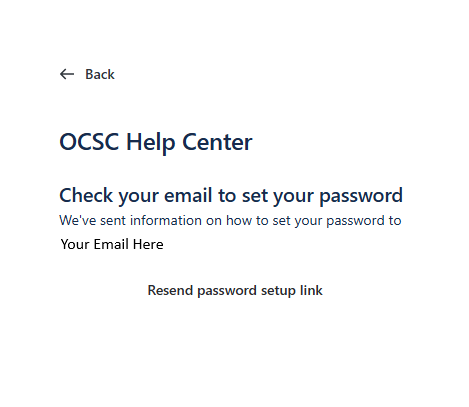
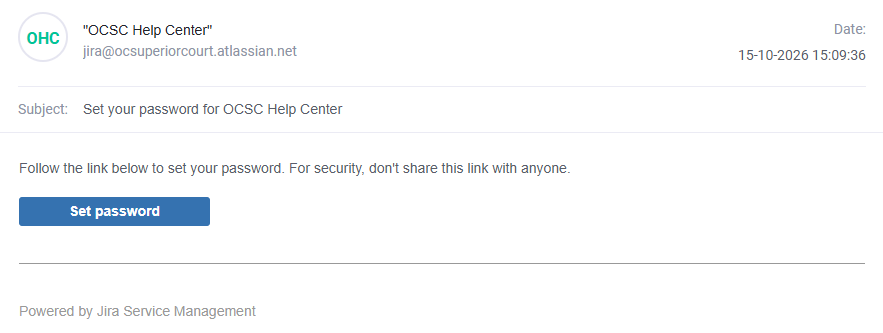
b. You will see a confirmation screen informing you that a Set Password link has been sent to your email. Check your email and click on the link to create your password.
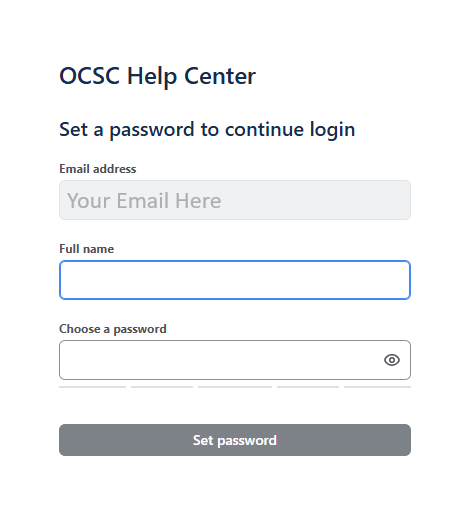
c. Enter your name and choose a password to use for your new Atlassian account. Click Set Password to continue.
d. After your account is created, you will be logged into the OCSC Help Center and taken directly to the Grand Jury Application.
If you already have an Atlassian account:
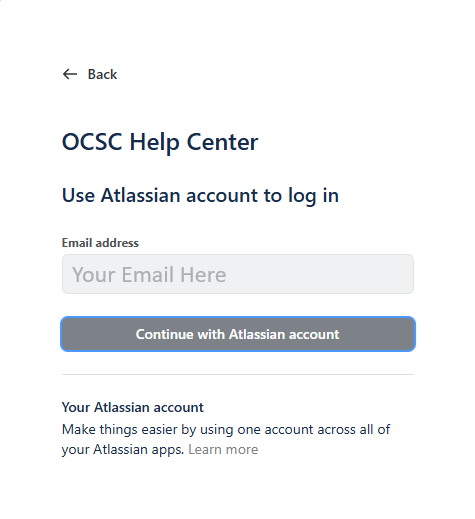
a. The screen will ask you to Continue with Atlassian account.
b. You will be prompted to enter your password to log in. Enter your password and click Continue or click Reset Password if you need to reset it.
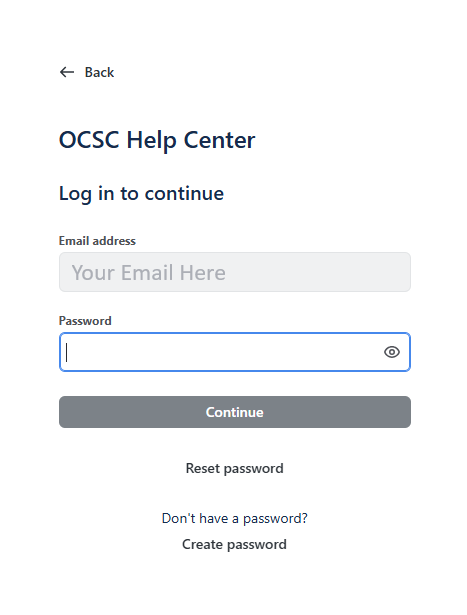
b. Once you enter a valid password or complete the password reset process, you will be logged into the OCSC Help Center and taken directly to the Grand Jury Application.
After logging in, you can complete the Grand Jury Application. Any fields marked with an asterisk (*) are required.
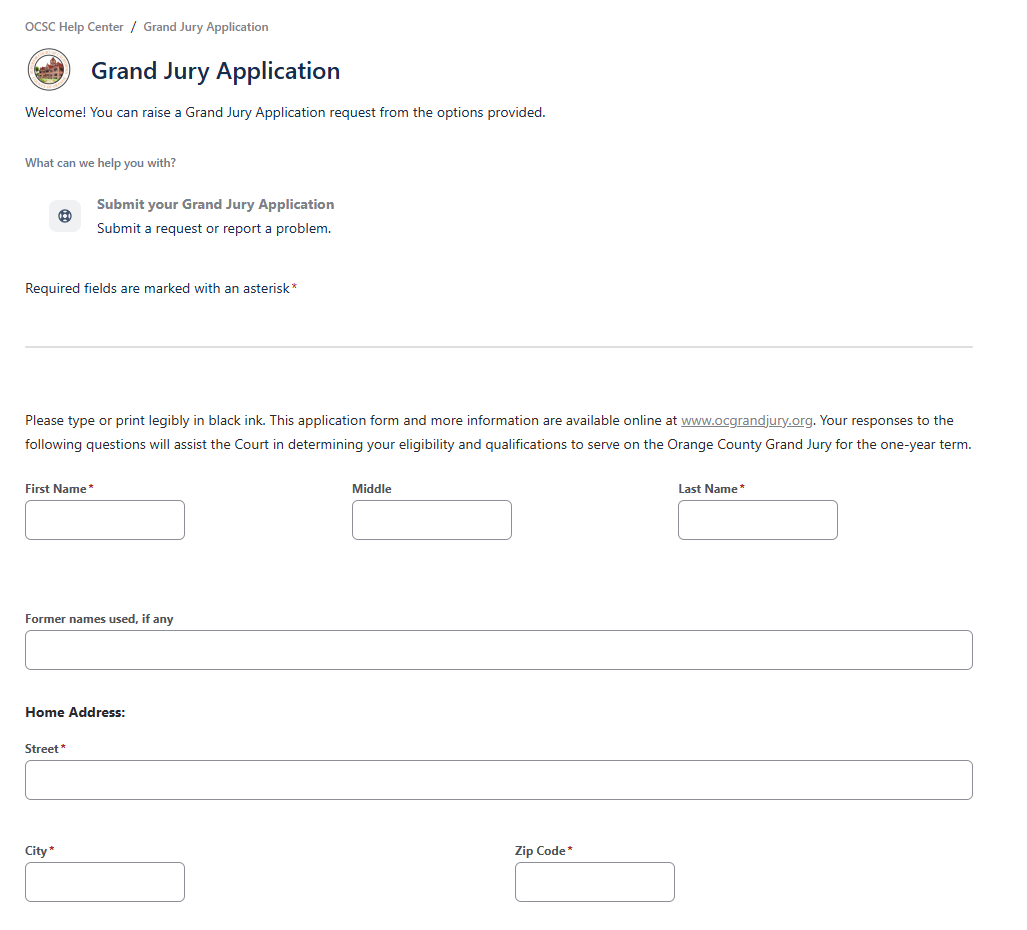
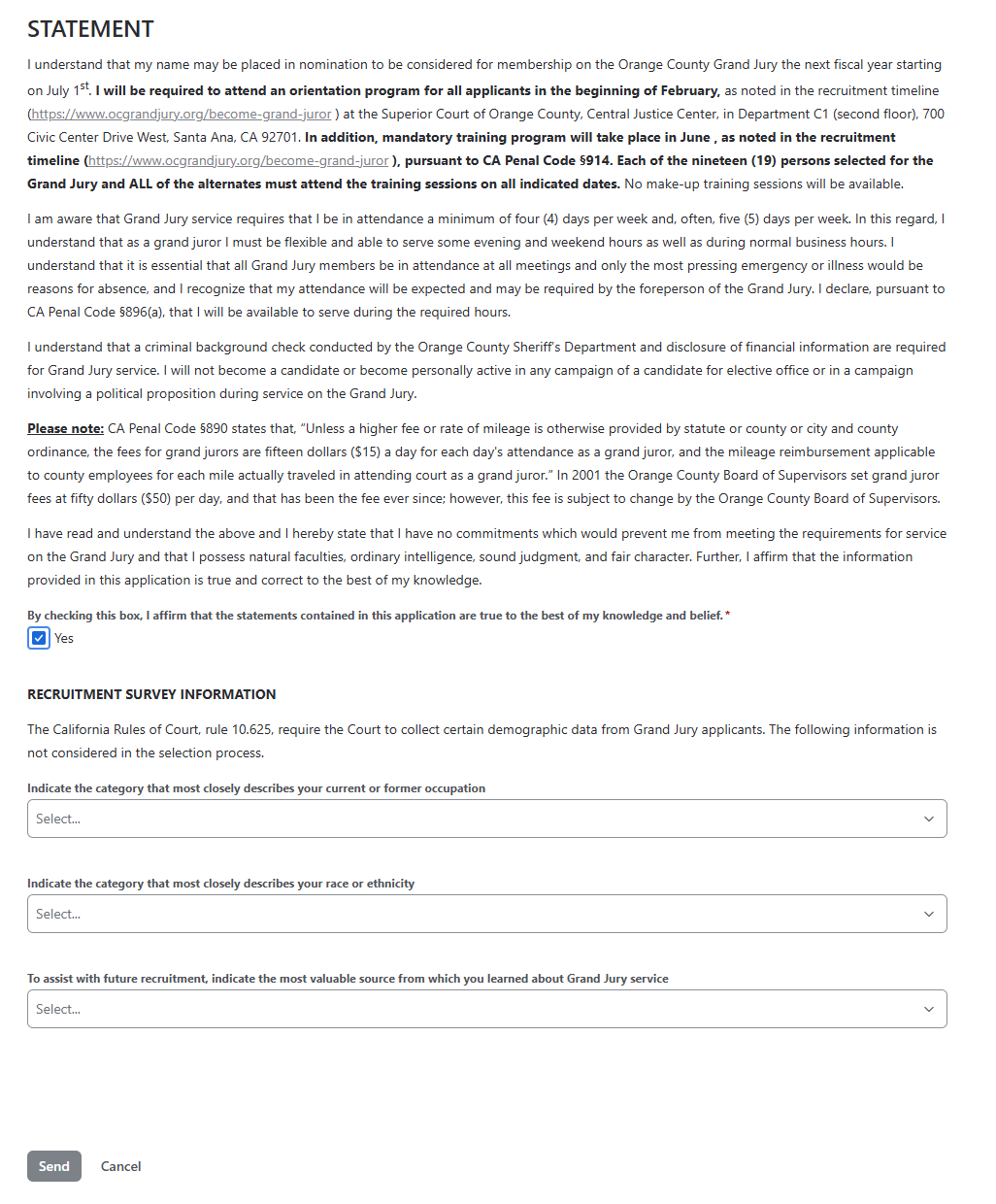
Click the checkbox to affirm the statements in your application. Click Send to submit your application.
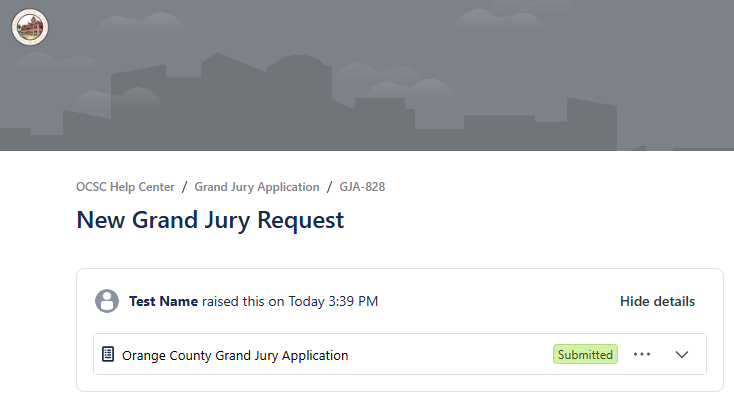
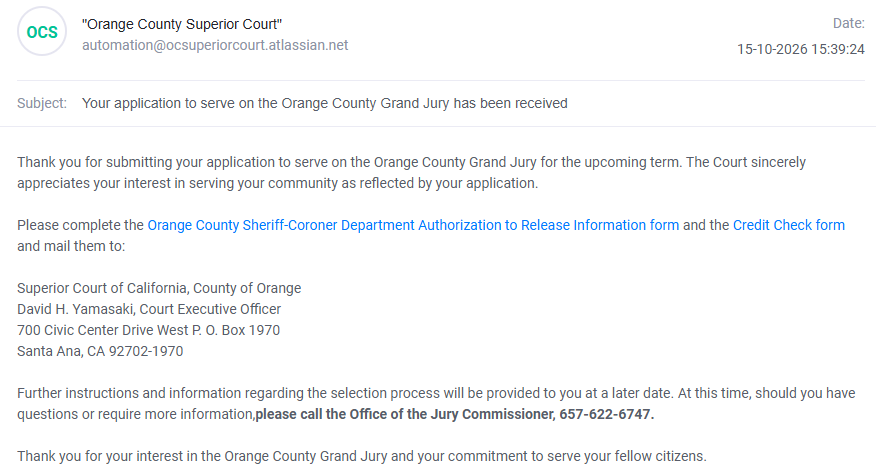
After submitting your application, you will be taken to a confirmation screen where you can view its status. You will also receive a confirmation email acknowledging receipt of your application and outlining the next steps in the process.